


FileMerge as a Git Difftool
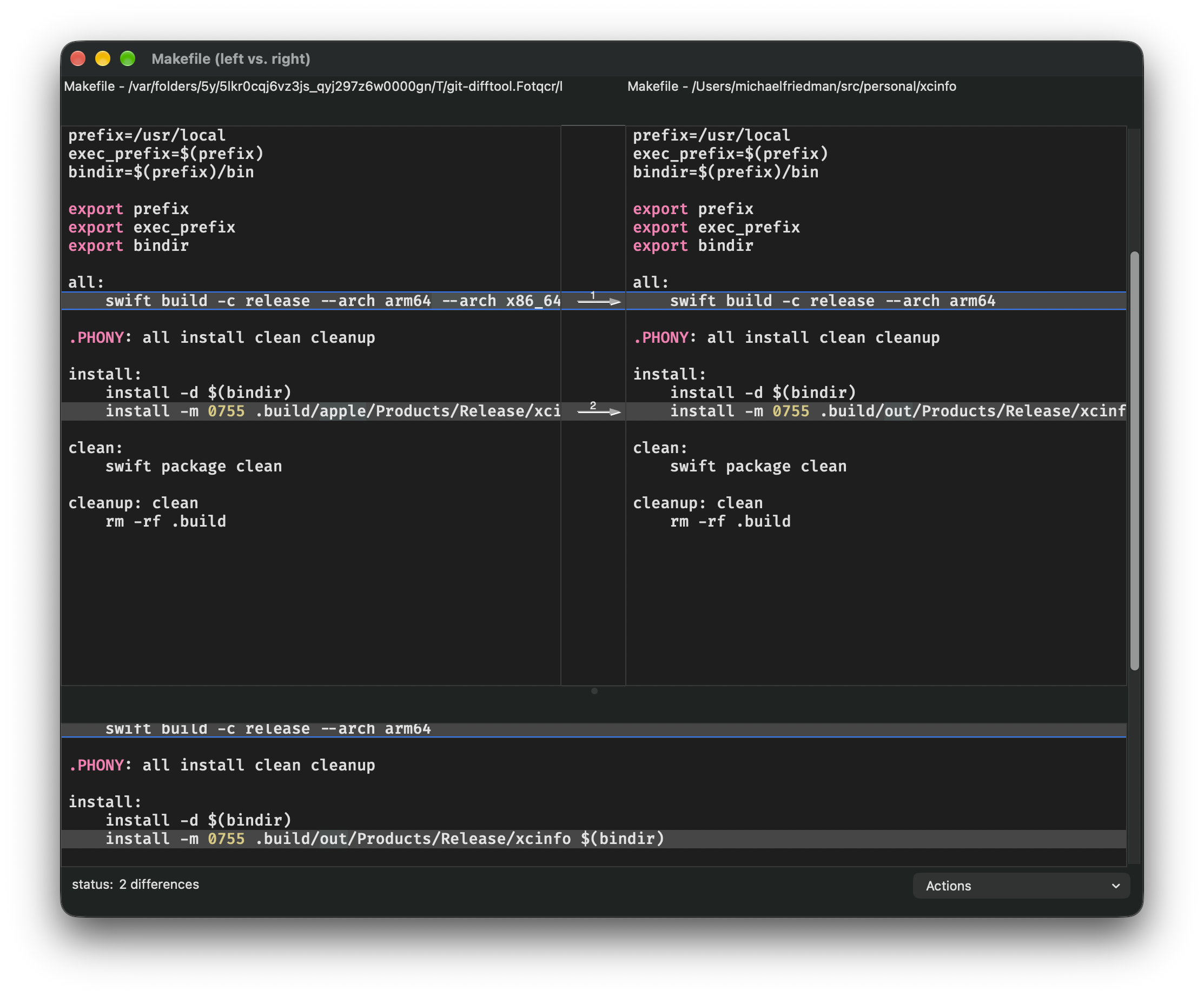
23 Nov 2026Included with Xcode since its earliest days, FileMerge might just be the most underrated tool in the package. It is a powerful, free visual code difference tool that many developers overlook.
Getting Started
Because it comes as part of the Xcode download, you have to install Xcode to get it. And don’t let the last update date in 2018 fool you — it’s still supported and included even on Xcode 27.3.
Setting it up is straightforward. Because FileMerge relies on the opendiff command-line tool, you can easily configure Git to use it by running the following commands:
> git config set --global diff.tool opendiff
> git config set --global merge.tool opendiff
or edit your ~/.gitconfig directly like so:
[merge]
        tool = opendiff
[diff]
        tool = opendiff
Using FileMerge With Git
Use git difftool -d to launch FileMerge with your changes. It pops up a handy completely-keyboard-navigable folder diff chooser to see which files have changed.
Choosing a File
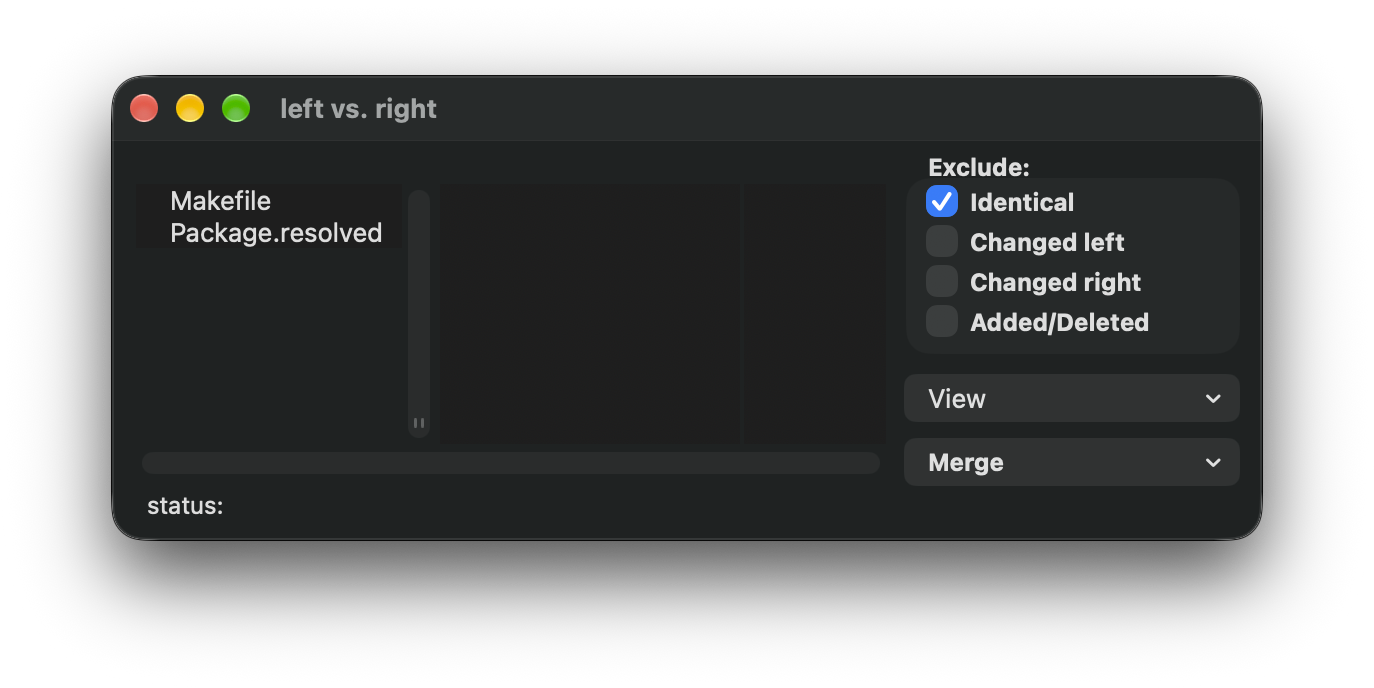
You can use the arrow keys to navigate through the columns and files and hit ⏎ to open the diff for any changed file. Options let you show/hide changes by file, so you can choose to ignore brand new files, for example.
| Key | Effect |
|---|---|
| 🔼 | Previous file |
| 🔽 | Next file |
| ◀️ | Move up one folder |
| ▶️ | Move down one folder |
| ⏎ | Show the differences for the selected file |
Viewing Differences
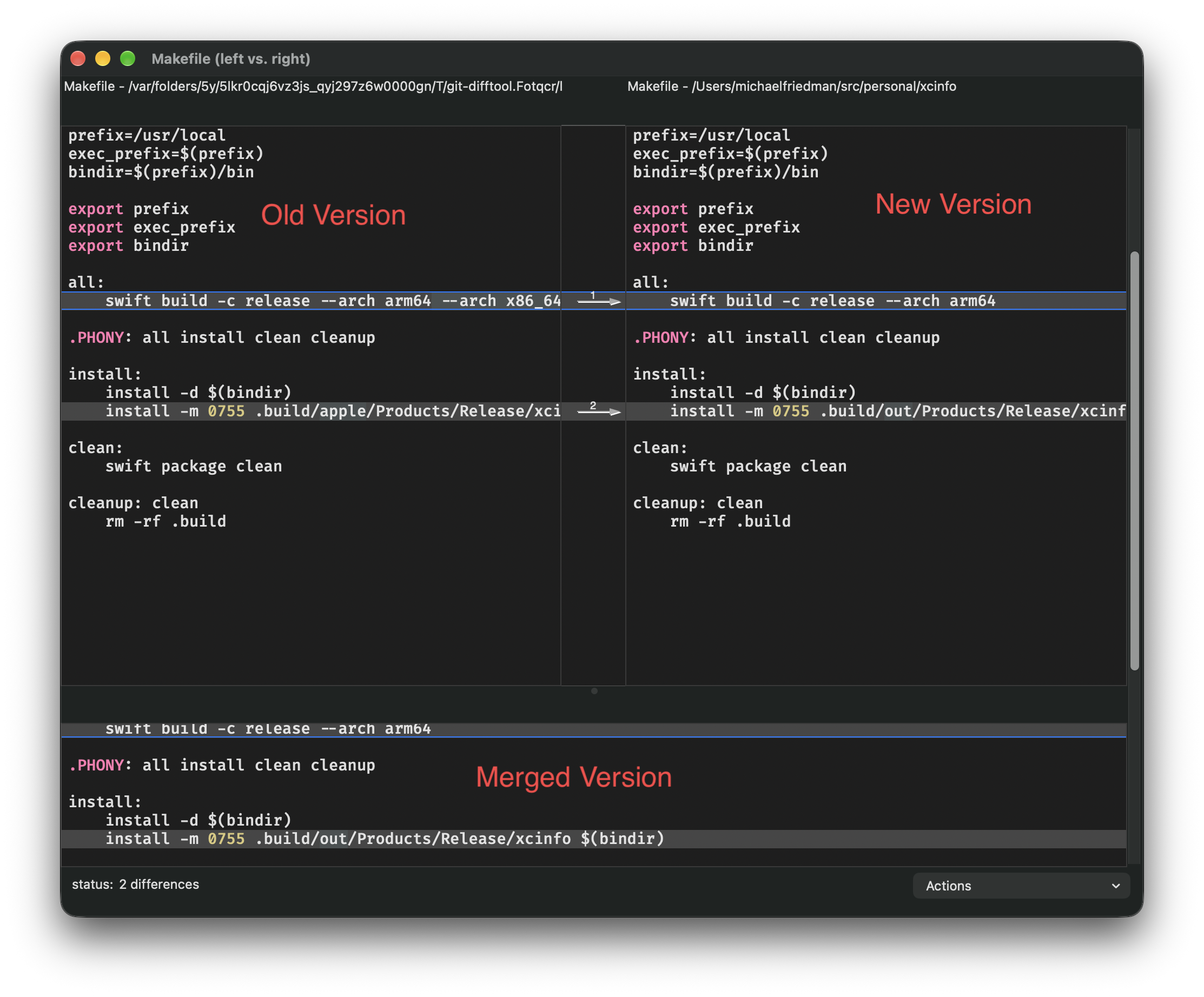
Once you are looking at a single changed file, it shows the old version on the left and the new version on the right. You can use the arrow keys to navigate the diff:
| Key | Effect |
|---|---|
| 🔼 | Show previous difference |
| 🔽 | Show next difference |
| ◀️ | Choose version in the left pane to include in the merged file |
| ▶️ | Choose version in the right pane to include in the merged file |
The fully-merged file is shown at the bottom of the window, where you can edit it in place, mid-diff, if you want.
Pro Tip: By default, FileMerge doesn’t know where to save your changes. If you want to edit files regularly inside FileMerge, it helps to follow these instructions to create a
gdiffcommand which fills in the correct directories for old and new files automatically.